|
 |
|
|
|
|
| |
| |
| |
| |
| |
| |
| |
| |
| |
| |
| |
| |
| |
| |
| |
| |
| |
| |
| |
| |
| |
| |
| |
| |
| |
| |
| |
| |
| |
| |
| |
| |
| |
| |
|
|
|
» |
 |
|
| |
| |
| |
| |
| |
| |
| |
| |
| |
| |
| |
| |
| |
| |
| |
| |
| |
| |
| |
|
 TESTIMONIALS TESTIMONIALS
|
|
"...I can now easily set up projects for my staff and email all from a single program! I no longer need a separate email program, calendar and project management system to keep all my contacts, projects, tasks and company departments - I can do it all with VIP software. Thanks for making my life easier!..."
Kim Haas -
New Baden, IL
|
|
|
|
|
Authorization
|
|
|
|
|
|
|
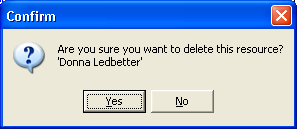
VIP Team To Do List: Deleting a team member. |
|
|
|
|
|
|
|
|


 button on the toolbar, or select the Resources \ Delete Resource menu item, alternatively press the Delete key on the keyboard.