Buy
   Home  » VIP Organizer  » Online Manual
Categories Bar
Live Chat Software for Business
About
System Requirements
User interface summary
Main Toolbar
Navigation Bar
»Categories Bar
Filters Bar
Tasks List
Export of Tasks Toolbar
Tray Bar
Columns Layout
Creating a New Task
Deleting existing Task
Editing existing Task
Filter Tasks
Group Tasks
Sorting Tasks
Recurrences Tasks
Reminder
Change of categories
Management a task order
Task Properties
Find Text
Category Summary
Create a Category
Add Sub Category
Editing a Category
Deleting a Category
Management a category order
Sorting Categories
Change Category Hierarchy
Import/Export CSV
Export Tasks List
Create a new Database
Open Database
Save Database
Protection information
General Options
Appearance
Tasks List Options
SMTP Options
Upgrades
Technical Support
Purchase
License Agreement
Contact Information

  LOGIN

<< username >>
<< password >>
Remember me on this computer
  Forgot your password?
  Register

  TESTIMONIALS
"...I've tried all three VIP products and am very impressed with their excellent quality and your exceptional support (you responded to my email questions promptly and helpfully). I've decided upon VIP Organizer, which fits my needs exactly and it is far superior to any other product on the market, whether web-based or stand-alone. In my opinion, you have met the challenge of making a perfect organizer..."
Gerald R. Williams -
Provo, UT

Categories Bar


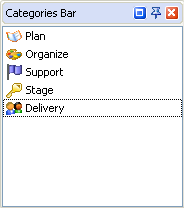
     By default the Categories Bar is located in the upper right part of the VIP Organizer window and displays a hierarchical list of existing categories for filtering the tasks by category. Also you can easily see how many tasks are there in the category and how many of them are undone at that moment.

Additional possibilities:

You can quickly and easily change the hierarchy level of a category by drag & drop - drag a category to the desired position and release the mouse button to drop it there.

If you need to change the category of selected tasks, drag and drop them onto the needed category.

Right-click on a category to call the context menu with the full list of actions applicable to that category.

You can easily change the category icon - choose Edit Category in the context menu and change Image in the Edit Category dialogue box.

To expand or collapse categories with subcategories choose Expand All or Collapse All in the context menu.

Export category view to Excel, HTML or to Text format

 
Related Topics:


  Products Solutions Download Buy Support Contact My Account 

  Copyright © 2004 - 2008 VIP Quality Software, Ltd. All Rights Reserved.

 
Legal Information
Task Management Software
Task Management Guide